
Organisation administrators (admins)
1. Introduction
As an organisation administrator, you are responsible for managing users, roles, and access rights within your organisation. In the Self Service Portal, you manage this using business roles and application roles: business roles bundle the standard permissions associated with a job profile, while application roles determine the specific access within a registry.
On this page, you can read how to add users, manage accounts, and assign the correct access for each user through these roles.
2. User management
2.1 Inviting new users
Through user management, you can add new users. They will receive an invitation allowing them to create an account.
2.2 Removing outdated accounts
Remove users who no longer require access. This keeps the environment secure and up to date.
2.3 Adjusting user permissions
For each user, you can modify roles and permissions. This determines which registries and functions they have access to.
2.4 Group Editing
With group editing, you can adjust roles and permissions for a group of users in a single action.
3. Self-service for users
Users can themselves
- Edit their own account details
- Request access for new registries themselves
This reduces the workload for administrators and speeds up the request process
4. Roles and access management
Access within the Self Service Portal is based on two types of roles: business roles and application roles.
For each user, you can configure which access is granted through business roles and application roles.
When you select a business role, the corresponding application roles are applied automatically. These represent the standard permissions for a user based on their job profile.
If a user requires additional or deviating access, you can manually add extra application roles. These manual selections are clearly marked, ensuring it remains visible which permissions come automatically from the business role and which ones you have added yourself.
4.1 Business roles
A business role is a predefined role that corresponds to a job profile within your organisational structure, for example roles such as:
- Nurse specialist
- Application administrator
- Care registration team lead
A business role contains one or more application permissions. By configuring business roles in advance, each user automatically receives the correct default access.
4.1.1 Beheren van bedrijfsrollen
You can add and manage business roles:
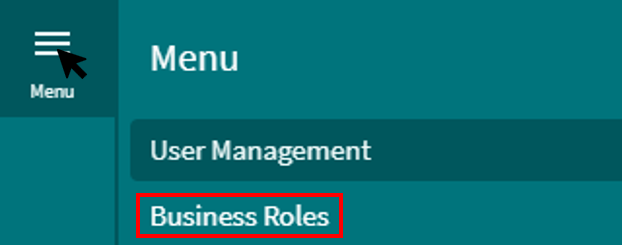
- Business roles can be configured via the menu
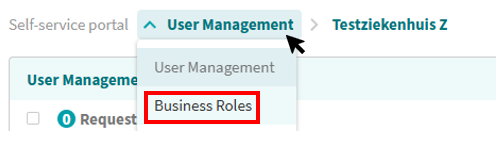
- Via the dropdown function at the top of the console
4.1.2 Overview of Business roles
In the business roles overview, you can see for each role:
- The name of the role
- A short description
- Linked permissions or registries
- Number of users currently assigned to this role
- Use the ‘+’ button to add an additional business role
- From this overview, you can easily add new roles or modify existing ones

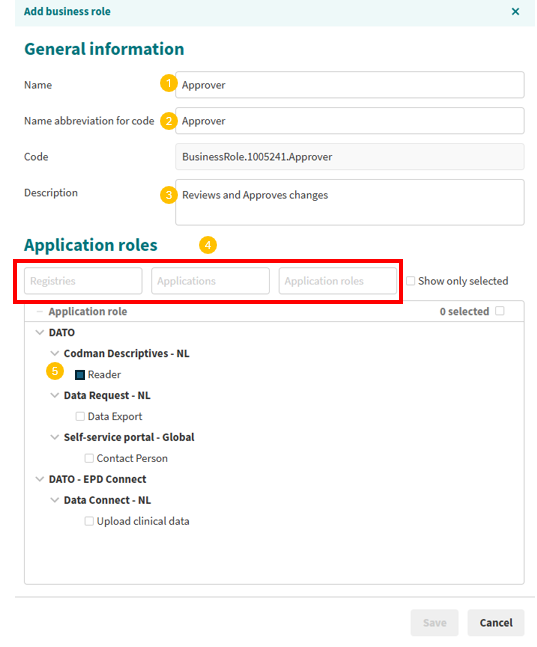
4.1.3 Add business role
- Enter a name
- Choose an abbreviation of the name
- Add a description that explains the purpose of this role
- Use the filter fields to search more quickly
- Select all permissions you want to link to this business role
4.2 Application roles: Assiging specific access rights
4.2.1 Automatically assigned application roles
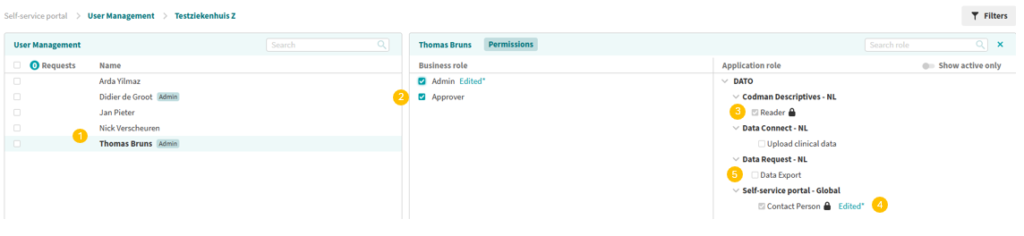
Application roles linked to a business role are applied automatically (grey box)
4.2.2 Manually adding additional application roles
- Select the user you want to edit
- Tick the business roles you want to assign to this user.
- Application roles associated with those business roles are automatically selected (grey box).
- Any manual changes you make to application roles are clearly highlighted.
- If needed, you can add additional application roles on top of the business roles
- With this approach, you ensure that each user receives the correct access based on their role within the organisation
5. Group editing
With group editing, you can adjust roles and permissions for a group of users in a single action. This makes management especially more efficient when:
- New teams or departments
- Changes in job profiles
- Organisational restructurings
Performing group editing
- Go to user management
- Select multiple users
- Select edit permissions
- Apply the desired roles in a single action
- This ensures a fast and consistent setup of access rights within your organisation

6. Benefits for administrators
Managing users through the Self Service Portal offers you:
- Secure and consistent access
- Less manual work thanks to group editing and business roles
- A clear structure in user and role management
- More independence for users, as they can request access themselves
- An overview of all assigned roles and permissions within your organisation